
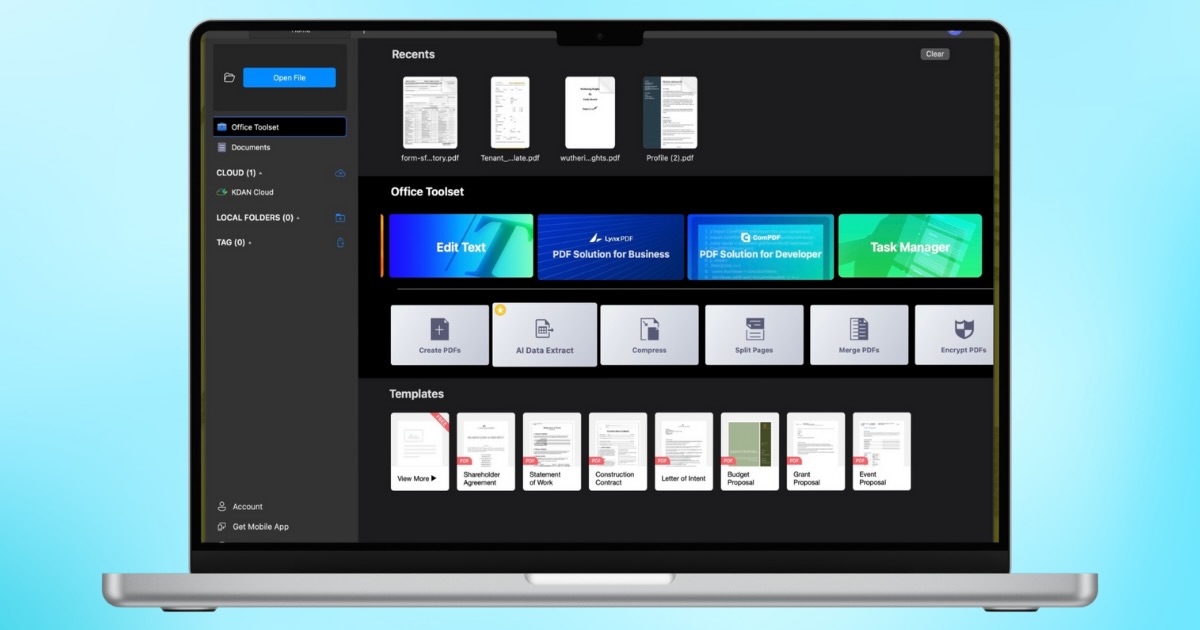
Today, I’m taking a look at KDAN PDF, a PDF document productivity solution with a powerful toolbox of features driven by AI. For anyone who’s ever had to wade through a sea of files in Apple’s Preview or other document viewing software, you know what a hassle it can be to spend time redacting, merging, or signing multiple documents. KDAN PDF is there when you need it to sign, convert, edit, merge, and more, without the need for switching between multiple apps.
KDAN PDF: Standing Out as a PDF App
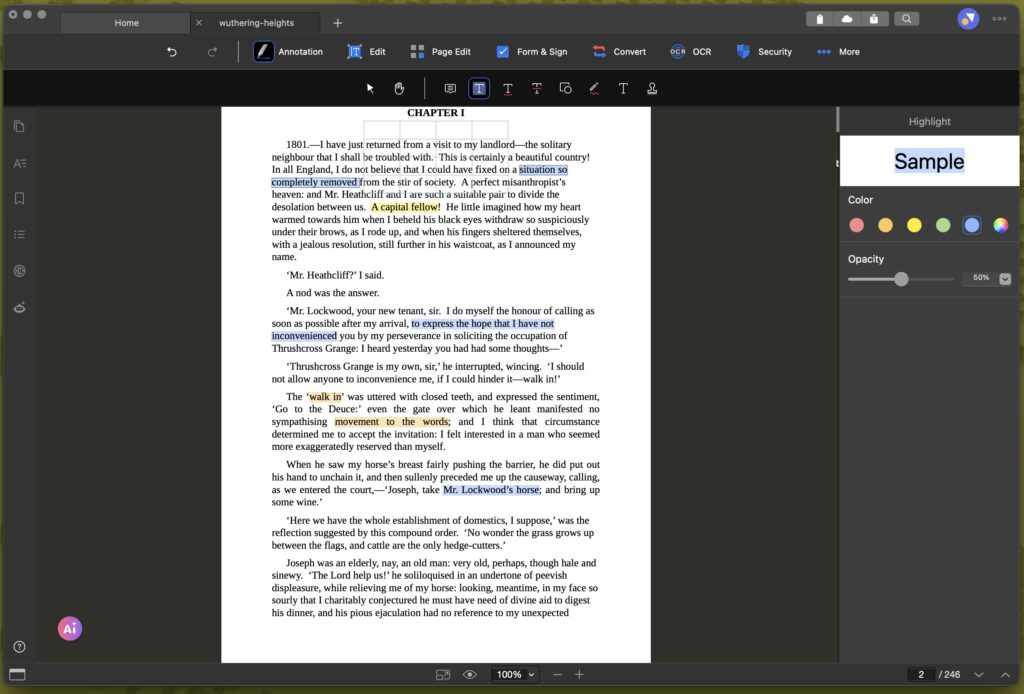
On macOS, the Preview feature can do a rather decent job of viewing and slightly altering PDF documents, but anyone who has ever worked with it knows that it falls short when it comes to true productivity. Fortunately, the expansive options within KDAN PDF offer a wide array of modern tools that can be ideal for a variety of situations, including legal, education, human resources, and anyone that works with a large amount of digital documents.
One of KDAN PDF’s most standout features is its AI toolbox. Along with being able to summarize large documents while pulling key data from tables, KDAN PDF’s AI can even help with proofreading documents and making suggestions. Auto Redact can scan for sensitive data and redact it before you share a document, and there are also options for translation and a built-in AI assistant chatbot. KDAN PDF is packing quite a bit of power under the hood.
Going Beyond AI: Additional Features
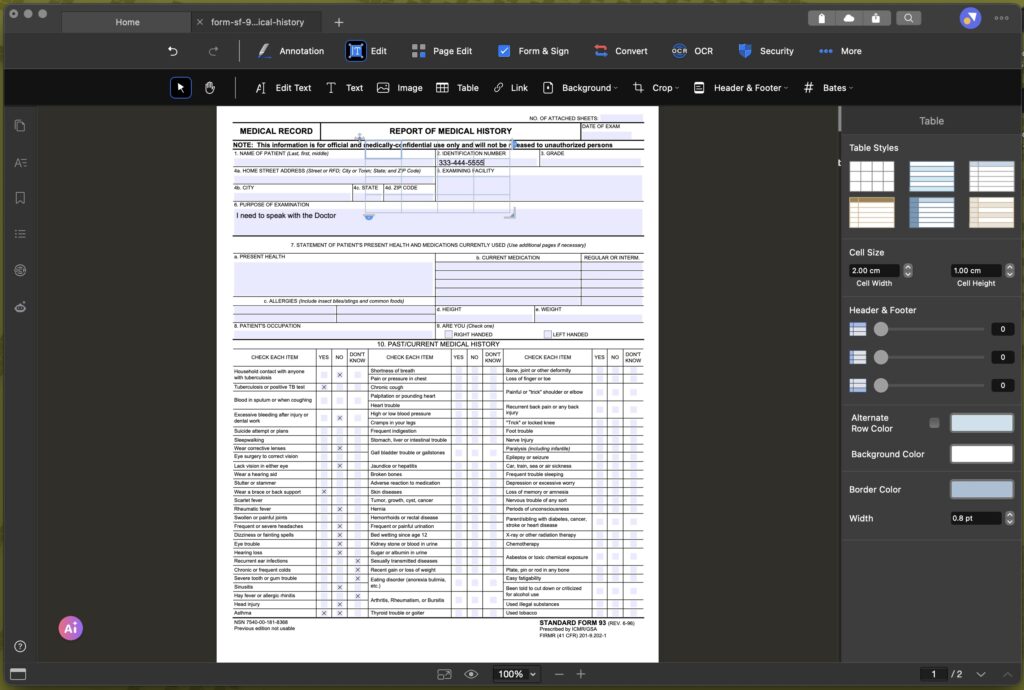
The developers behind the program really thought about what users need in a PDF document reader, as the ability to edit text is perhaps my favorite feature. There have been several situations in my work life where I’ve had to go hunt down a method for editing a PDF document, as I’m sure many in an office setting have also had to do, and the program offers that and more. KDAN PDF can not only edit text in a PDF document, but it also lets you add or replace images, and merge or rearrange pages directly within the file. Whether it’s creating interactive forms or converting files on the fly, KDAN PDF does it well, and it’s all packaged in a straightforward, easy-to-use UI.
For those that work with sensitive data, the app’s redaction tools allow you to permanently hide private information such as addresses, names, and more. It’s perfect for any business that deals with personal information. KDAN PDF also allows you to set permissions before sharing, with options to encrypt files or have password-protected documents. For those who have ever had their boss ask them to convert a PDF document into a Word Doc or vice versa, don’t worry, KDAN PDF can do that, too, while also shrinking down document file sizes and sending them via email.
What I Like About KDAN PDF
After getting the opportunity to play around with the app on my M4 MacBook Air, both the clean UI and snappiness of KDAN PDF immediately stood out. Without naming names, it’s been popular these days to bury certain features behind a labyrinth of menus, and I appreciate that this wasn’t the case. From the main screen, you get the Open File button right in the top-left corner, and then you’re presented with your Recents, Office Toolsets, Additional Tools, and Templates right on the main menu.
Opening a PDF document is a snap, and once again all your tools are present directly at the top of the toolbar. Switching between multiple PDFs is just like browsing multiple tabs through a Safari or Google Chrome browser. It can make multitasking a variety of documents feel like nothing.
The amount of tools available really ensures that KDAN PDF will be there for you at any part of a document’s lifecycle. With editing tools rivaling a word processor, to the ability to annotate, convert, and add security, the app has enough tools to get from that first initial review to that final delivery time. Lawyers and paralegals are going to love the redactions tools, whereas researchers and students can benefit greatly from the annotation features. There’s a little something for everybody packed away in KDAN PDF, and I appreciate the versatility.
What Could Use Work
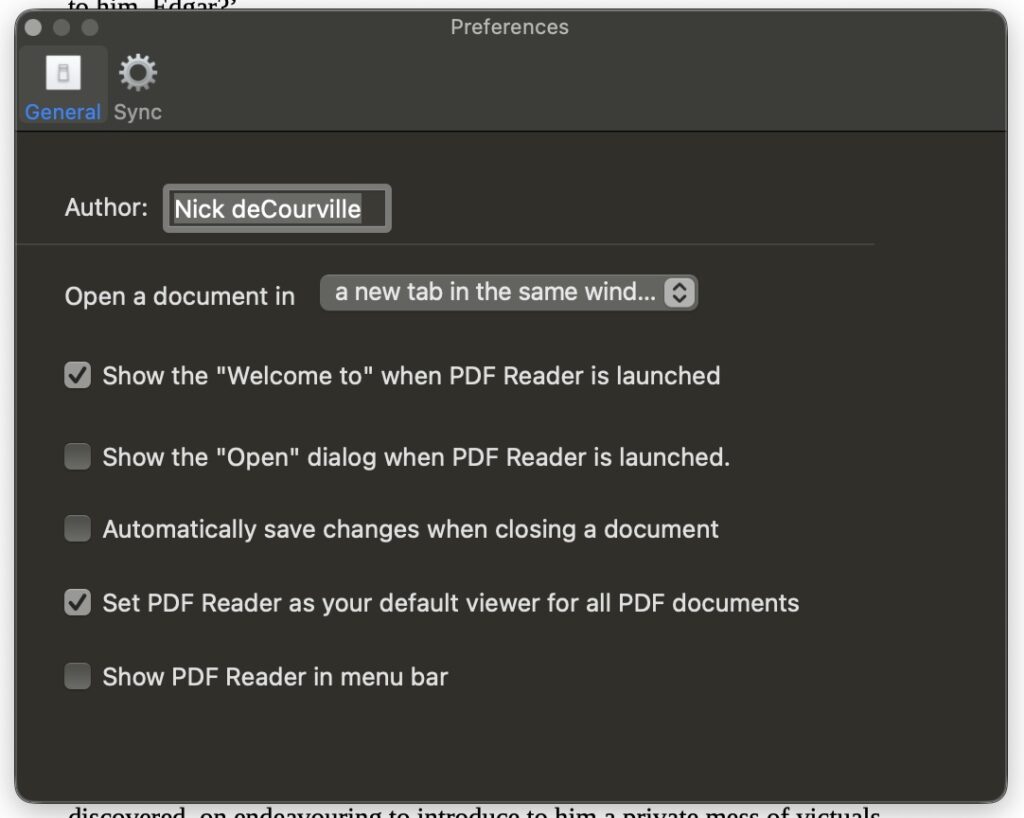
While there are quite a lot of things I like about KDAN PDF, though there are some drawbacks worth addressing. Personally, one of the first things I needed to do was head to PDF Reader > Settings from the Menu Bar and tweak some settings. You’ll want to do this, too, as this is where you will be entering a name for documents, which isn’t a problem, but I also had to disable the app from showing up in the Menu Bar automatically. While I can see this being ideal for quick access to the app, I prefer to keep things clean. This will be personal preference, of course, but something to keep in mind.
The AI tools are indeed rather powerful, but remember that you may want to check for any possible errors after implementing any of its features. While this may be a bit of paranoia on my part, I don’t find any AI software to be entirely flawless, especially if you happen to work in the medical or legal professions. Don’t get me wrong: the tools are going to be helpful and save you a lot of time, just be sure a human is checking it, especially when dealing with sensitive information.
Lastly, while the program is great for a wide-variety of professionals, there is slightly too much of a focus towards professionals, and some people simply may not be the right fit for this application. I’ll be discussing your options more below, but if you’re simply looking to convert a PDF to a Word Doc a couple times a month, you may miss out on the true power the program offers. Fortunately, this isn’t too much a problem.
The Final Word: Is KDAN PDF Right for You?
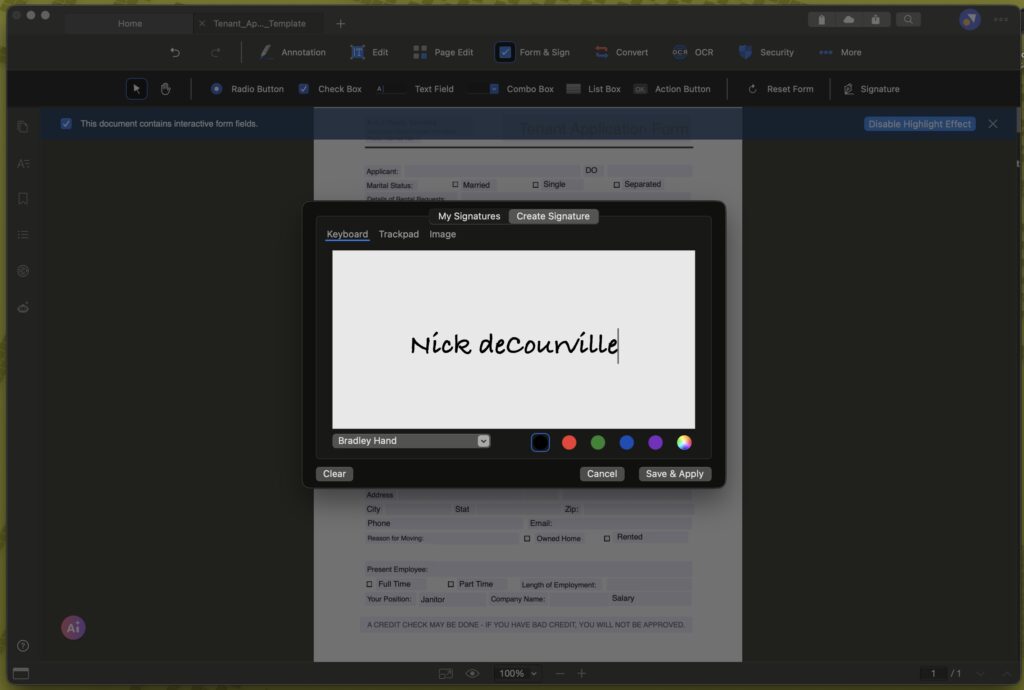
Considering KDAN PDF is available to download for free on the Apple App Store, there are a few reasons you shouldn’t at least download it and give it a try. After determining that it’s right for you, you’ll have three different options for accessing the premium features: either a cross-device Document 365 subscription, the comprehensive Document 365 AI+ & eSign, or a single-device permanent license for Document 365. Subscription options also include monthly, quarterly, and yearly, which can really be great for businesses looking for billing options.
There’s also a 14-day free trial of the advanced AI plan. All you need to do is visit the KDAN PDF Redemption Page, which can be done in a few easy steps. Just enter your email and receive a confirmation, download the app, create a KDAN ID with the same email, and then sign in again to receive access to a good collection of AI tools.
For a business, I quickly see how KDAN PDF is going to save plenty of employees a lot of time and hassle. For a lot of them, the program is likely to quickly replace Apple’s Preview, but I can also see it replacing other third-party document editors in no time. It’s quick, it’s versatile, and it’s going to save a lot of people a lot of time, meaning they can get back to focusing on what’s important over wading through a digital sea of documents.


The first link to KDAN sends you to a Chinese-Taiwan page